
Setting your Default Devices using the BEACN AppUpdated 8 days ago
You can change your Windows default devices right inside the BEACN App. This article will show you how to change them and how to reset them to BEACN recommended defaults.
Setting Windows Default Devices
- Open the BEACN App
- If you are not on the ASSIGNMENTS tab on the bottom, Click ASSIGNMENTS
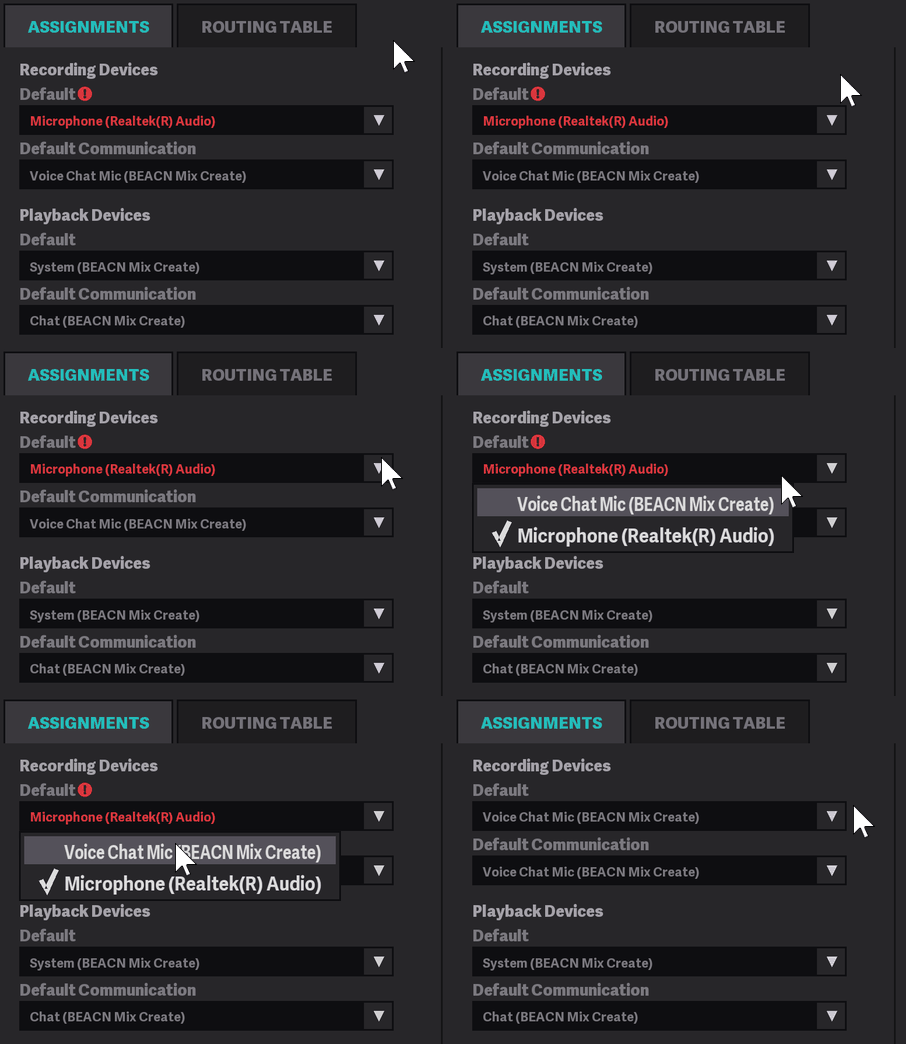
- Use the dropdowns on the left hand side to select your appropriate Default Devices
Note
BEACN's recommended Default Devices will be teal
There may be instances where your Default Devices in Windows changes from what you see in the BEACN App. Often times, this can be caused by a recent update to drivers, or Windows update. You can either follow the steps above to manually set them to your desired Defaults, or you can follow the steps below to choose to reset them to the recommended BEACN defaults, or have the BEACN App reset them to the BEACN defaults automatically whenever they change.
- Open the BEACN App. In the scenario above, your devices have changed from the Recommended defaults. In the top right corner, there is a red box that says, "Your Default Devices are not set correctly. Click here to reset them." Click on that text.
- A text box will appear with 3 options: Reset Once, Reset Automatically, and Cancel. Reset Once will reset your default devices to the BEACN recommended one time. Reset Automatically will set them back to the recommended anytime the device is changed.
- Select the option you want to use
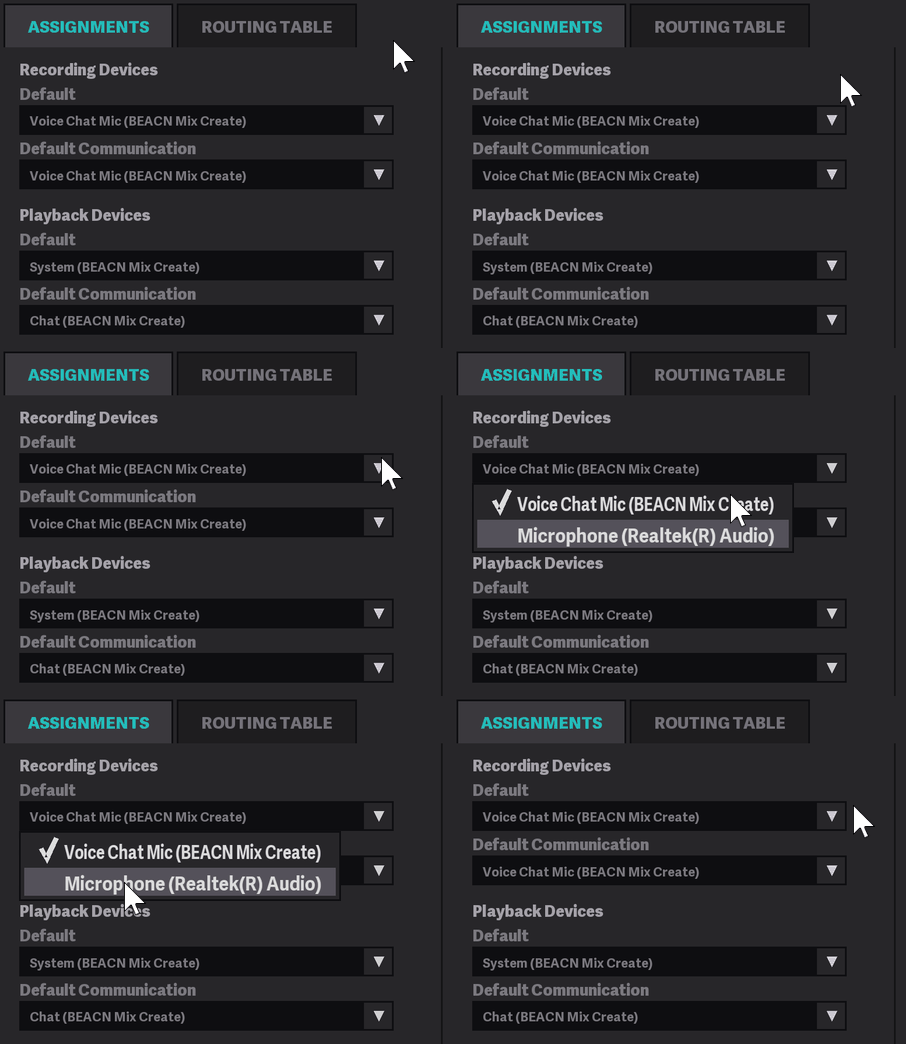
If you selected Reset Automatically and you try to change a device under ASSIGNMENTS, you'll notice it changes back to the recommended default
Note
If you would like to turn this feature off, Click on the settings cog, and turn off "Automatically Reset Windows Default Audio Devices" under BEACN MIXING SUITE SETTINGS