BEACN Headset Setup GuideUpdated 3 hours ago
Getting Started with BEACN Headset
Welcome to BEACN Headset. This guide gets you from the box to your first chat: charge it, connect it the way that suits you, and find your way around the Headset pages in the BEACN App.
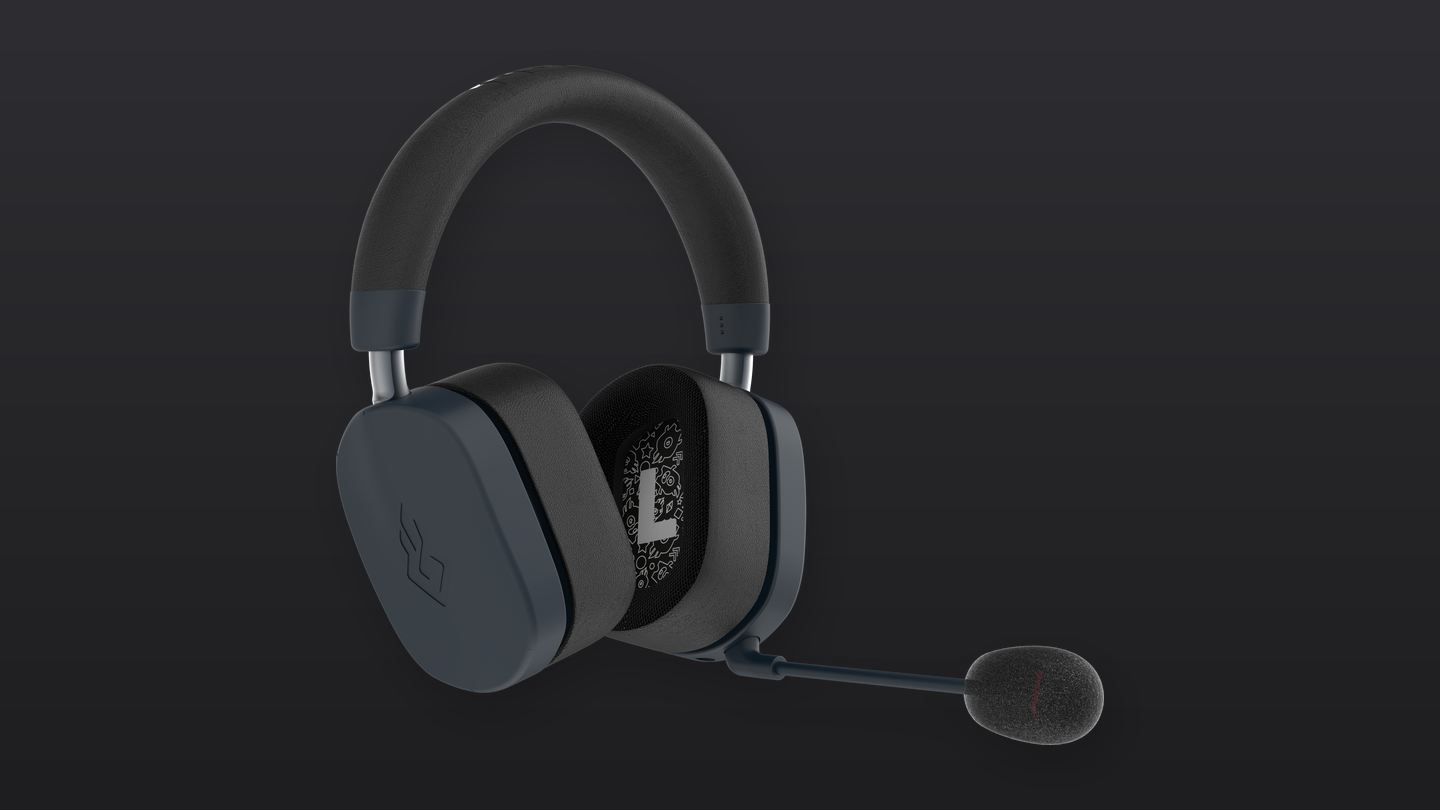
Plug the headset into a USB port with its USB cable. It turns itself on and tells you it is charging, followed by the battery level. If it is plugged into a computer, it says USB connected first.
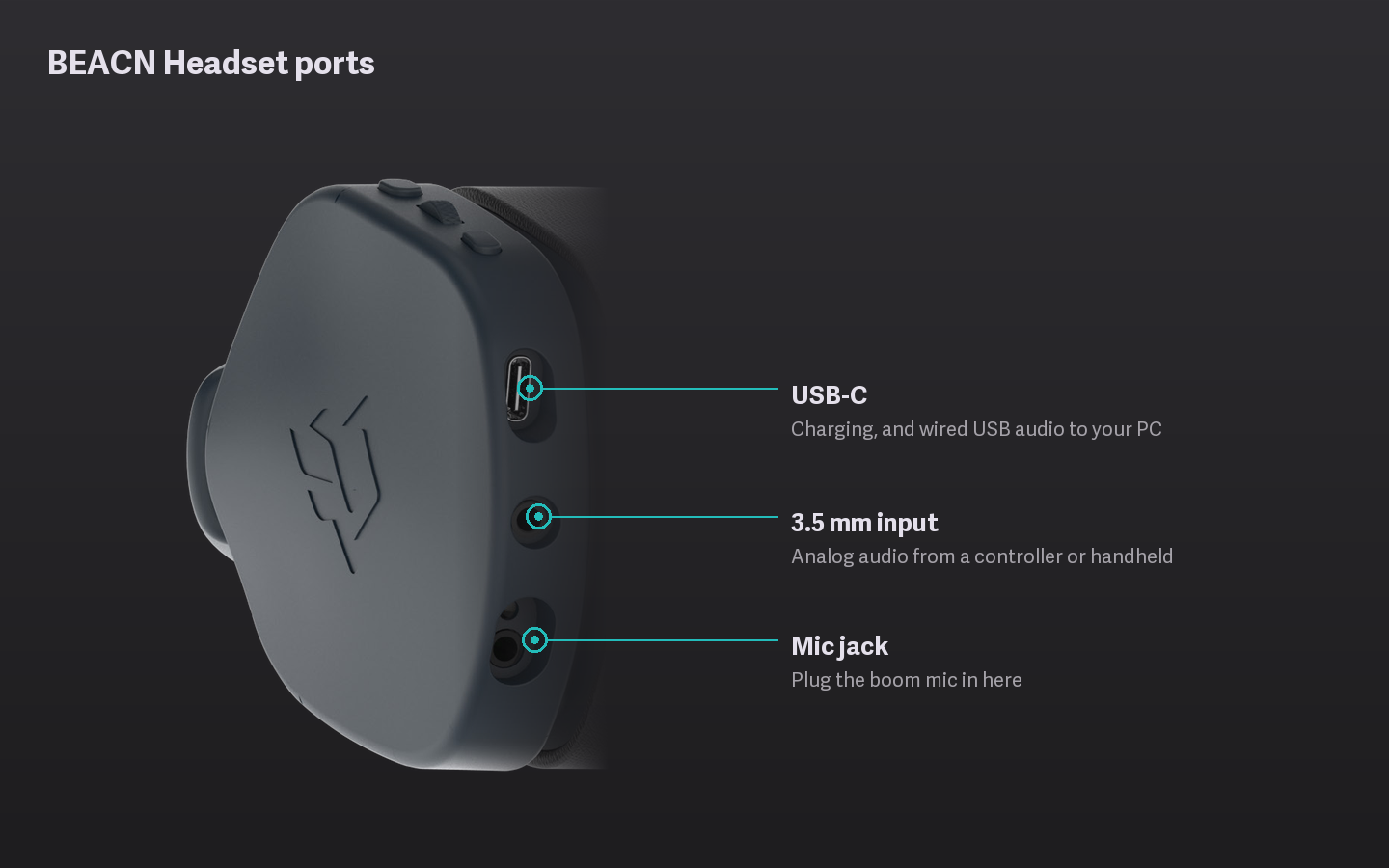
See Charging your BEACN Headset and checking the battery for more.
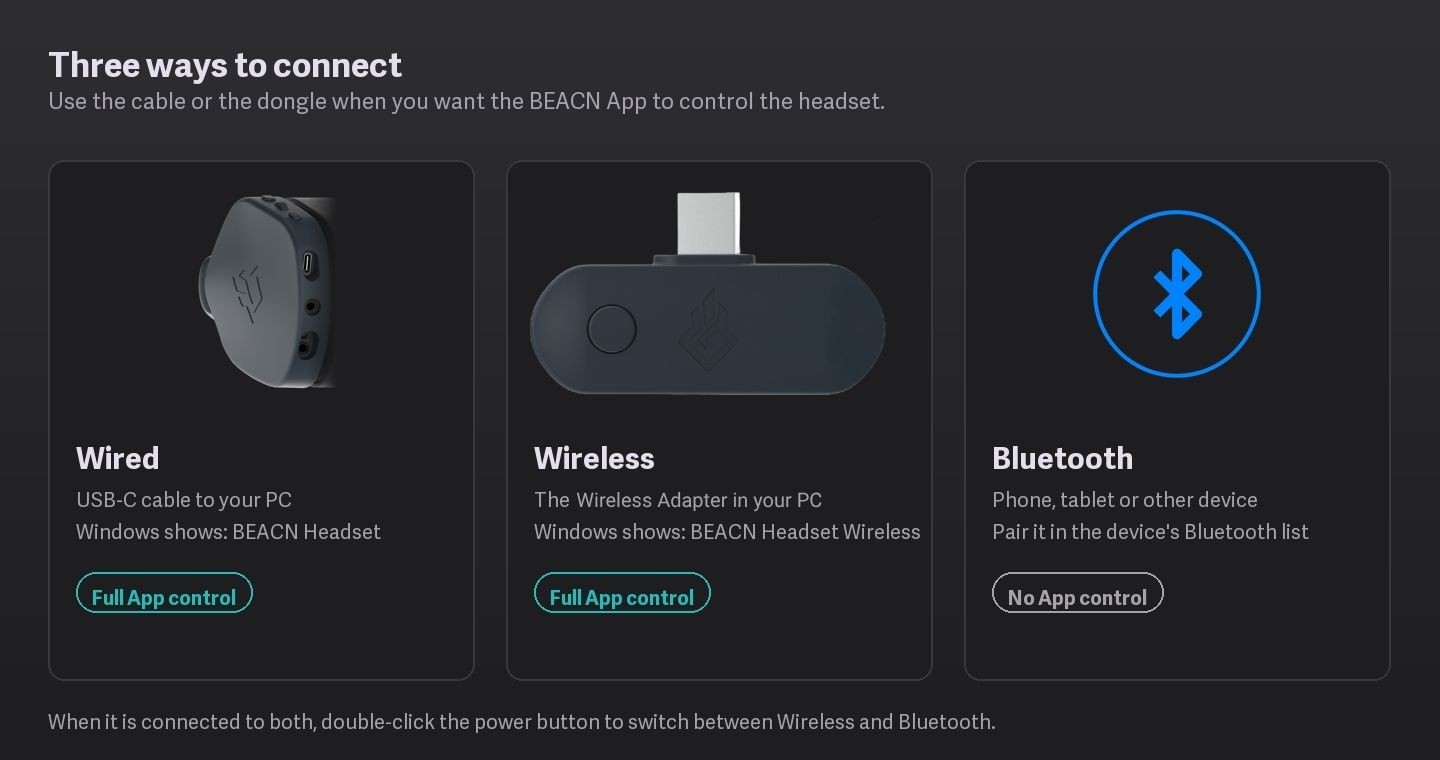
BEACN Headset connects three ways:
- Wired: the USB cable straight into your PC.
- Wireless: the BEACN Wireless Adapter in your PC, with the headset in wireless mode.
- Bluetooth: to a phone, tablet or other Bluetooth device.
Wired and wireless both give you full control in the BEACN App. Bluetooth does not. See Wired, Wireless or Bluetooth: which connection should I use with BEACN Headset?
Open the BEACN App on your Windows PC and choose your headset in the device bar. It has three pages:
- Headset Mic Chain
Everything about how you sound, in four tabs: MIC SETUP, NOISE SUPPRESSION, EXPANDER and COMPRESSOR.
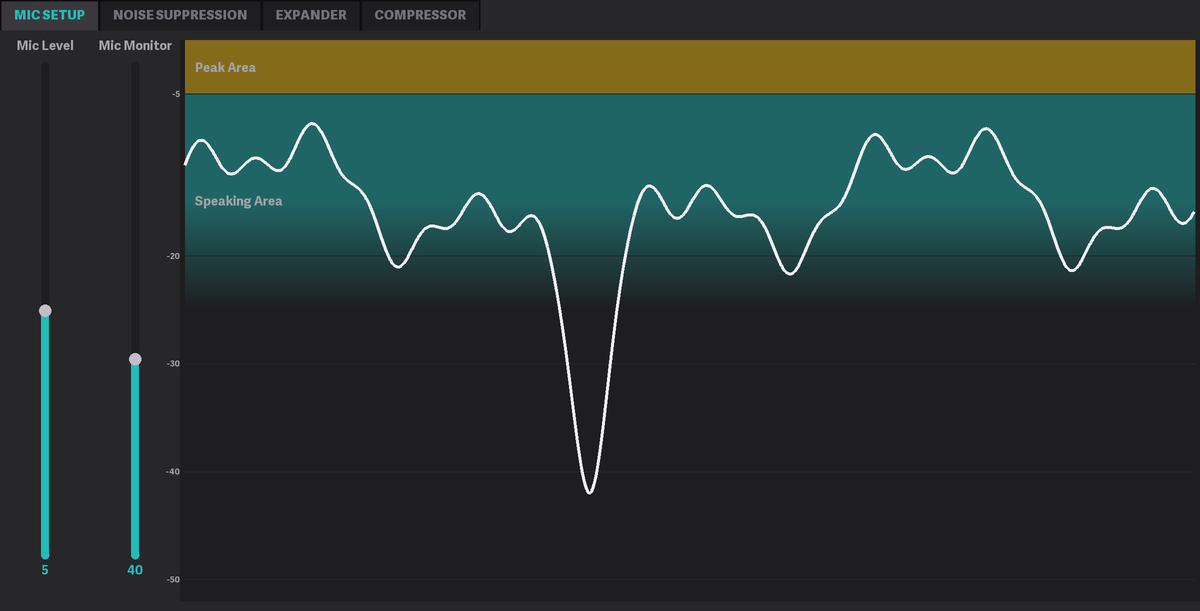
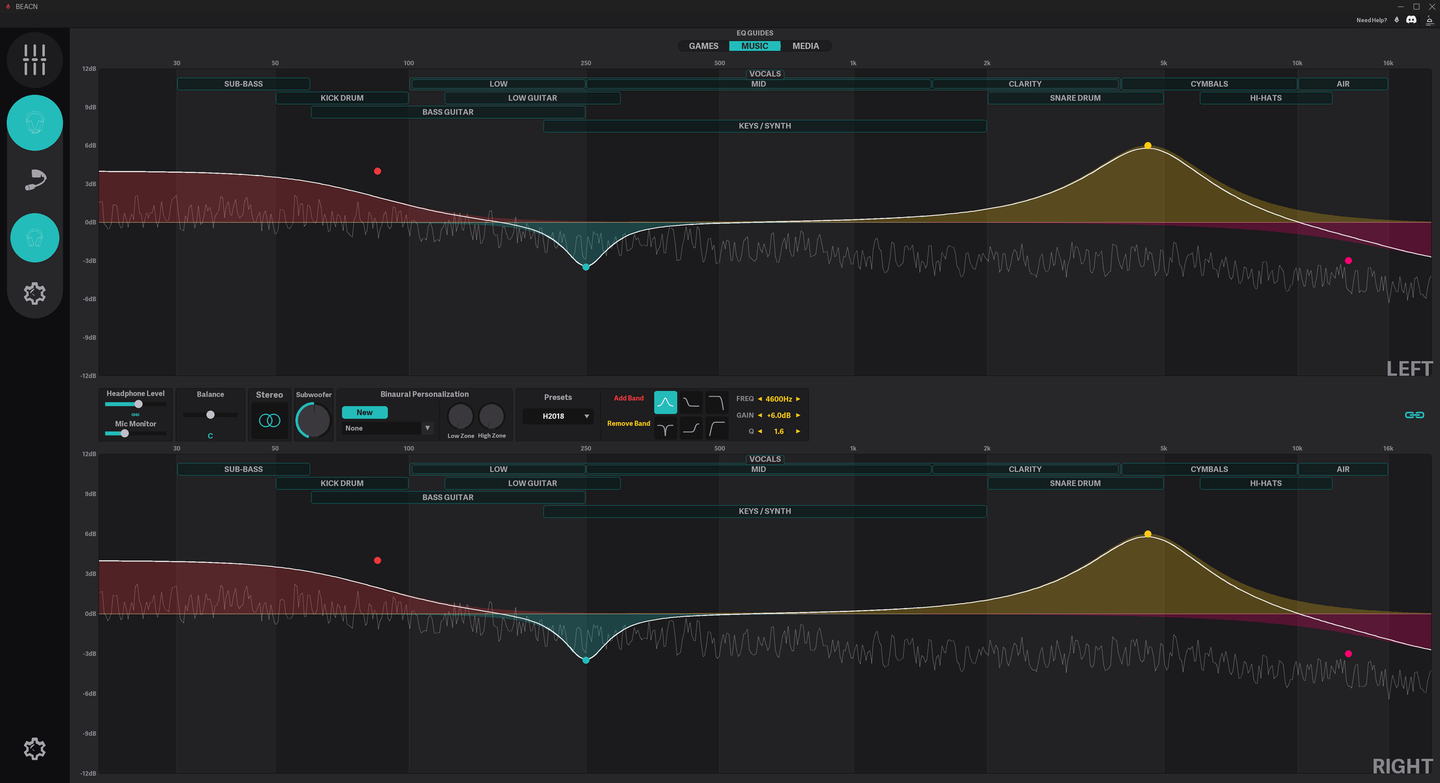
- Headset Headphones
Everything about what you hear: the Headphone EQ and its presets, Subwoofer, Headphone Level, Mic Monitor and Binaural Personalization.
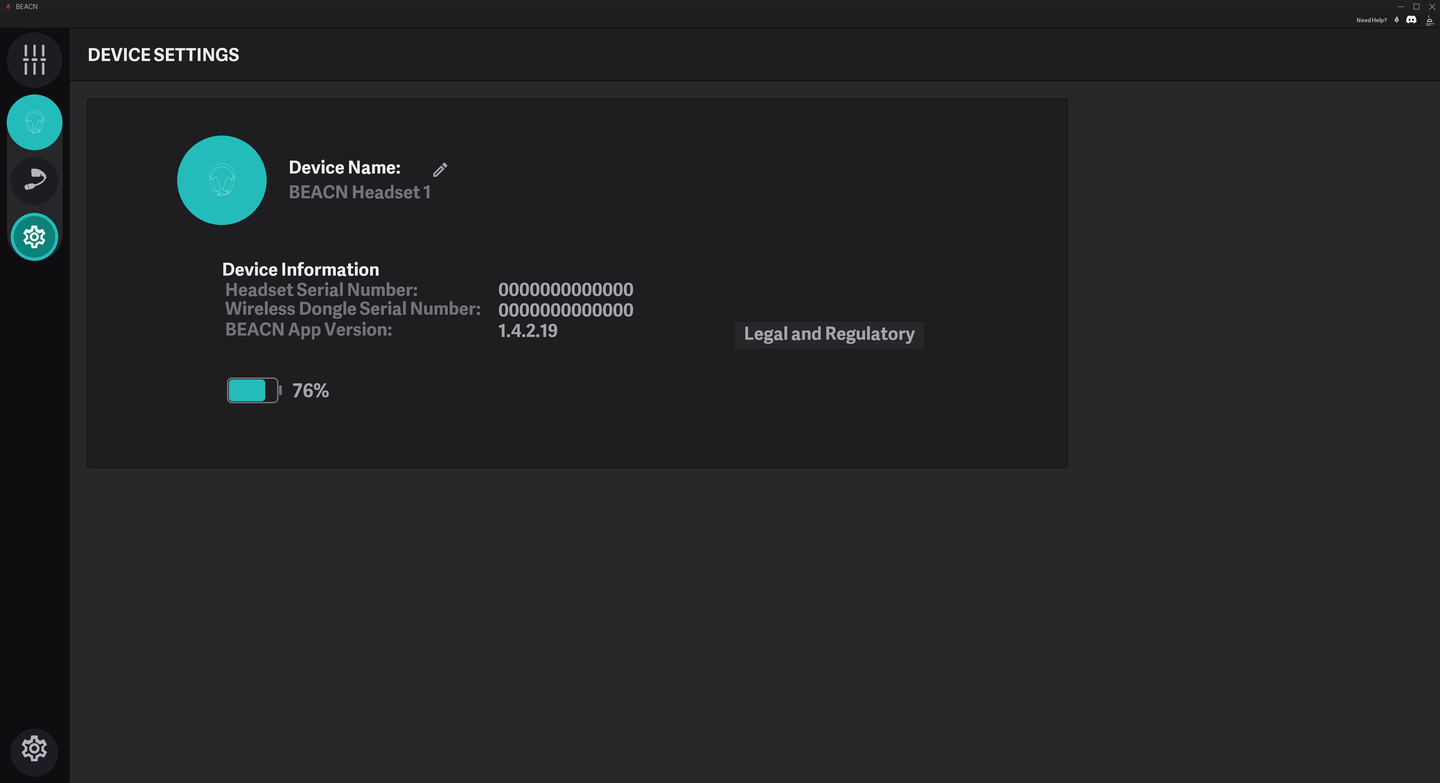
- Settings
Your headset’s name, its serial number (and the Wireless Adapter’s, when you use it), the BEACN App version, and the battery level.
The App also adds a Mixing Suite for your headset, where each app gets its own knob. See Using the Mixing Suite with BEACN Headset.
Your headset adds a few sound devices to Windows, such as System, Chat and Voice Chat Mic. Set them as your defaults so every app plays and records through the right one. See Setting your Default Devices for BEACN Headset.
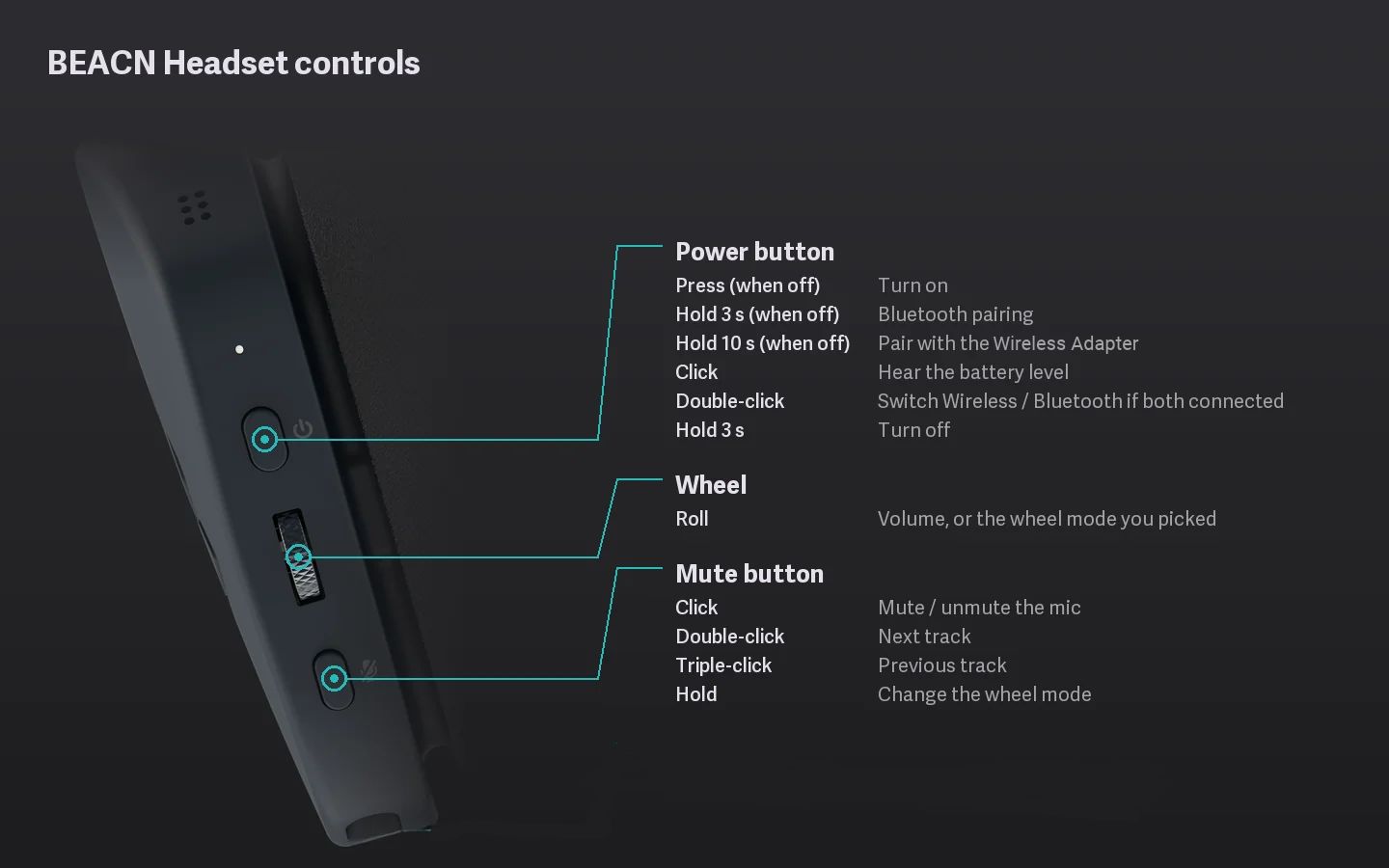
The headset has a power button, a mute button and a wheel. The wheel does more than volume: hold the mute button to switch it to Subwoofer, Chat/Game mix or, with the boom mic plugged in, Mic Monitor.