
Using your Audience Mix with BEACN HeadsetUpdated 19 hours ago
Using your Audience Mix with BEACN Headset
Your Audience Mix is what your stream or recording hears. With BEACN Headset you can set it separately from your own mix, so you can, for example, keep chat loud for you and quiet for your viewers.
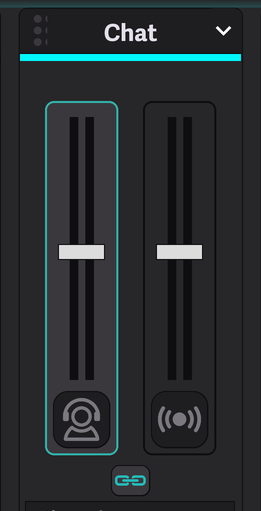
Each knob in the Mixing Suite has two levels: one for you and one for your audience. Unlink them with the link button (Link Personal and Audience Mix sliders) and set the audience level on its own.
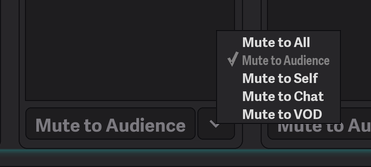
Open a knob’s mute options (Change mute option) and choose Mute to Audience. You still hear that source, but your audience doesn’t.
Under the knobs, Audience Mix Device shows Audience Mix by default. To send your audience mix to another output instead, pick it from the list.
The Audience Mix has no level of its own; each knob’s audience level does the mixing.
Set Submix to Audience, and your Listening Device plays the Audience Mix. Switch back to Personal for your own mix. See Listening Device and Toggle Listening Device A/B on BEACN Headset.