
Listening Device and Toggle Listening Device A/B on BEACN HeadsetUpdated 19 hours ago
Listening Device and Toggle Listening Device A/B on BEACN Headset
Your Listening Device is where you hear your mix, usually your headset. You can set two, A and B, and switch between them, for example between your headset and your speakers.
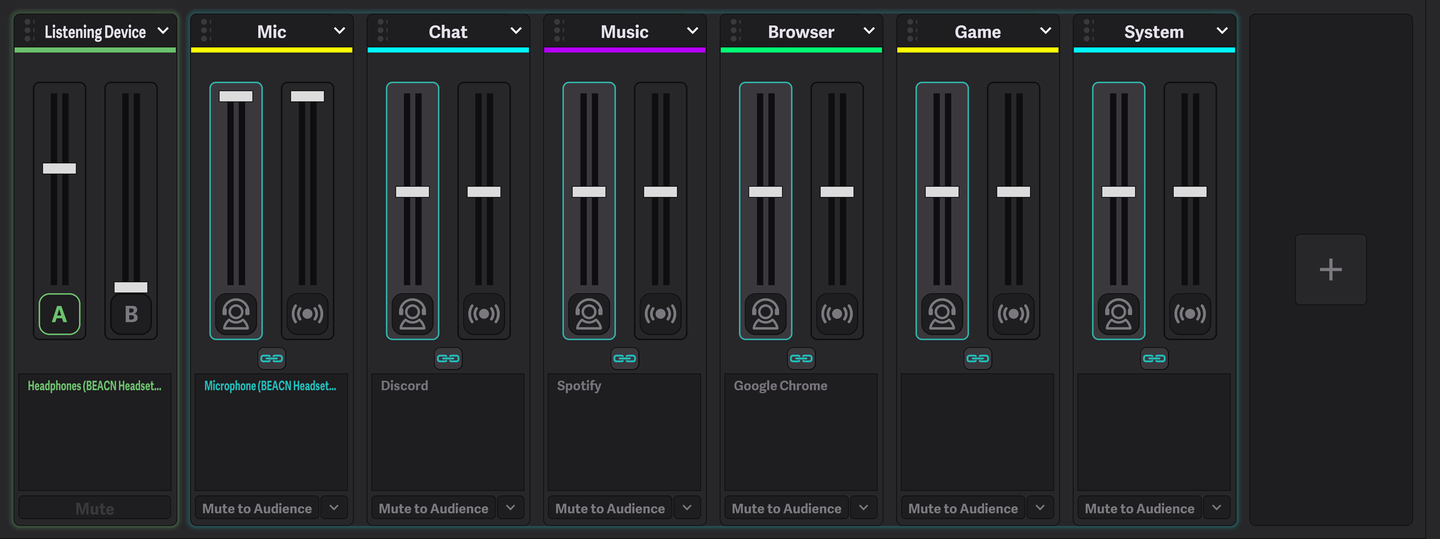
- Open the Mixing Suite
Click Mixer Controls in the BEACN App. The Listening Device section is under the knobs.
- Set Listening Device A
Open the top list (Select Listening Device) and pick where you want to hear your mix. If it’s empty, the App picks your headset’s Headphones device for you.
- Set Listening Device B
Open the bottom list and pick a second device, such as your speakers. A and B can’t be the same device.

- Click A or B on the Listening Device knob (Switch to Listening Device A / Switch to Listening Device B).
- Or use a hotkey: set one for Toggle Listening Device A/B (under LISTENING DEVICE) in the App’s hotkey settings. See How to setup hotkeys in BEACN App.
The Listening Device knob sets how loud your Listening Device is, and its Mute button (Mute the selected Listening Device) silences it.
Submix (Listening Device Mix Selection) chooses which mix plays on your Listening Device: Personal, your own mix, or Audience, so you can check exactly what your audience hears. See Using your Audience Mix with BEACN Headset.
Check that the selected slot (A or B) has a device and isn’t muted.