
How to change a knob's colour on BEACN HeadsetUpdated 2 hours ago
How to change a knob’s colour on BEACN Headset
Each knob has a thin coloured strip under its name. You can give each knob its own colour to make your knobs easier to tell apart.
- Open the Mixing Suite
Click Mixer Controls in the BEACN App. The Mixing Suite opens with your knobs.
- Open the colour picker
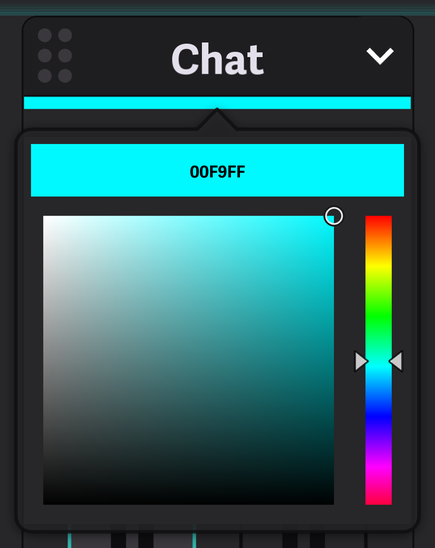
Double-click the thin coloured strip just under the knob’s name. You can also right-click the strip.
- Pick a colour
Click in the colour area to choose a colour, or click the colour code at the top of the picker and type a new one. The strip changes as you pick.
- Close the picker
Click anywhere outside the picker.
The Listening Device knob has a default colour you can go back to. Once you have changed its colour, right-click its strip and choose Reset to Default Colour, or Choose Colour... to pick another.
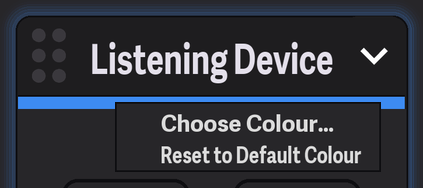
The Listening Device knob uses its colour across the whole knob, not just the strip.